

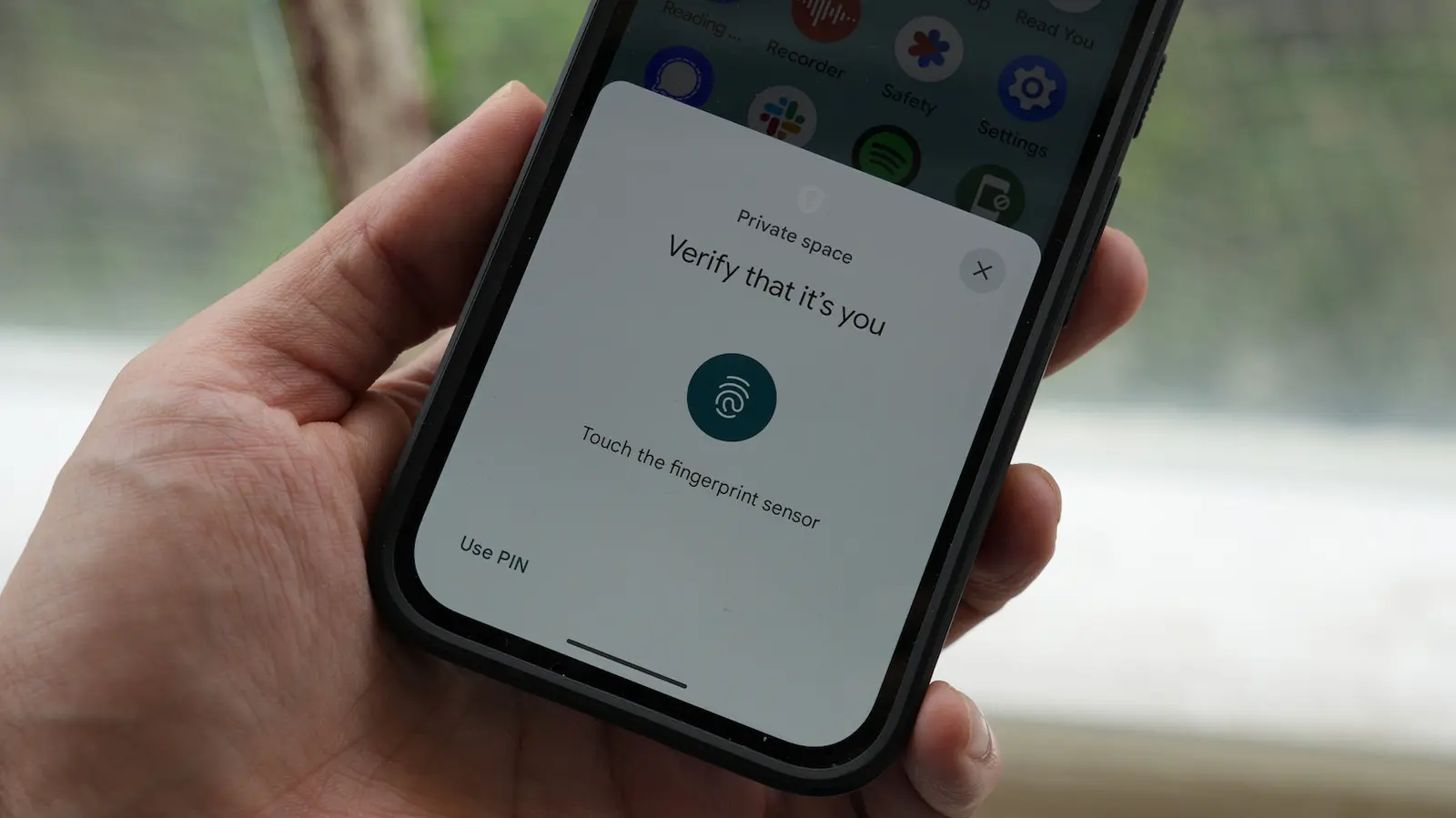
Android has quietly become one of the most flexible platforms for separating different parts of your digital life. A feature often called Private Space creates an independent, locked section inside the phone. It is not just a folder with a password. It is a separate profile with its own apps, accounts, files, and storage rules. Google builds this into Pixel devices as Private Space, while other manufacturers offer equivalents under names such as Secure Folder and Private Safe. The buttons and menus differ, but the core idea is the same: a walled-off area that stays hidden when it is locked and becomes a second phone when it is unlocked.
For anyone who carries work and personal life on one device, shares a phone with family, or simply wants banking apps and IDs away from everyday notifications, Private Space is more than a novelty. It can reduce exposure to malware, stop sensitive photos from syncing, and keep dating apps out of sight. Below are seven practical ways to use it, along with the trade-offs you should understand before moving important data inside.
Key facts at a glance
- Private Space is a separate Android profile that is hidden and locked behind its own authentication.
- It can run apps independently from the main profile, including duplicate copies of the same app with different accounts.
- Notifications are hidden by default when the space is locked.
- Files and photos moved into Private Space can be kept out of cloud backup and syncing.
- Locking the phone generally locks Private Space automatically.
- Manufacturers use different names, but the security model is similar across major Android devices.
How Private Space works under the hood
A traditional app locker simply covers an app with a password screen. The app still runs in the same Android profile, with the same permissions, the same storage access, and the same notification channel. Private Space is different because Android treats it like a separate user. That means apps inside cannot freely read data from the main profile, and apps in the main profile cannot freely read data from Private Space. Each side has its own app data, accounts, and file directories.
When you lock Private Space, Android also hides its notifications, recent tasks, and launcher icons. Depending on the device, the entry point may be invisible in the app drawer or settings. Unlocking can require a PIN, pattern, password, or biometric method that is separate from your main screen lock. This separation is what makes Private Space useful for banking apps, identity documents, and work accounts. It is also why the feature can feel like a phone inside a phone.
Setting up and managing Private Space
On most Android devices, setup begins in the security and privacy settings. You may see a dedicated Private Space option, or a manufacturer-branded equivalent such as Secure Folder. The phone will ask you to choose a lock method and may offer to sign in with a Google account. Signing in allows apps inside to use the Play Store and sync some data. Skipping the account creates a more isolated environment, but the Play Store and some Google services may not work as expected.
After setup, you can add apps by installing them from the Play Store inside Private Space or by moving compatible apps from the main profile. You can also add files through an Add Files button. Android will ask whether to copy or move the selected items. Copying keeps the original in the main profile. Moving deletes the original from general storage, which is usually the better choice for sensitive documents. Inside Private Space, files typically land in a Downloads folder, but you can reorganize them in the Files app. When you lock the space, those files disappear from the main Files app.
Lock banking apps
Using a dedicated Private Space for banking apps is much safer than relying on a third-party app locker downloaded from an app store. A third-party locker may hide the icon, but the banking app still lives in the same Android profile. A rogue app with broad permissions, malware, or someone who finds your unlocked phone could potentially reach it. Private Space places the banking app in a separate silo that cannot be accessed by apps in the main profile.
Once you install the banking app inside Private Space, set it up, and move it there, it disappears from your regular phone setup. When Private Space is locked, the banking app will not appear in multitasking, settings, or notifications. You can also use a unique PIN and biometric method for unlocking Private Space instead of repeating your main phone unlock method. Private Space locks automatically when you lock your smartphone, so you do not need to manually secure it every time.
The main trade-off is notifications. Private Space hides all notifications by default. If you need a one-time password from your banking app or an authentication prompt, you will have to unlock Private Space and open the app itself. That is a minor hurdle for the added security, especially if you prefer to keep financial apps out of everyday view.
Secure storage for IDs
There are many Android apps that help hide photos, and even Google Photos has a Locked Folder feature for sensitive images. Those tools are fine for occasional use, but they are not designed for a full document safe. Private Space works as a separate profile, making it a stronger home for passports, driver licenses, insurance cards, medical records, contracts, and scanned IDs. It can handle PDFs, document files, and images in one protected environment.
When you tap the Add button in Private Space, you will see an Add Files option. Choose the files you want, and Android will ask whether to copy them or move them. Moving them deletes the originals from general storage, which prevents duplicates from lingering in the main gallery or Downloads folder. By default, the moved files appear in the Downloads folder inside Private Space. You can then create a personalized folder structure in the Files app. Once you lock Private Space, those files automatically disappear from the Files app and from other apps in the main profile.
This setup is especially useful when you need to show an ID or document but do not want it stored in a cloud-synced gallery. It also reduces the chance that a photo picker, messaging app, or file manager in the main profile will accidentally expose the document.
Separate your work life
When you set up Private Space, you get an option to log in to a Google account. You can use the same account if you like, but you can also separate things out. In fact, using a different Google account for Private Space is often the better choice. It could be your work account, or it could be a secondary account created for privacy. When you sign into Private Space with a different account, your two identities stay completely separate. Private Space can store a separate set of email addresses, contacts, calendar events, browsing history, and logins.
This way, work data will not crowd your main profile. You can install or move work-related apps here, and they will lock up the moment you lock Private Space. It is a good place to stash apps that use sensitive work data or documents. It is not suitable for communication apps that depend on live notifications, because locked Private Space will not deliver alerts or updates. If you work from home and need to manage personal time and work tasks on the same smartphone, this separation can be a practical boundary. It keeps work apps visible only when you deliberately unlock them.
Same app, two accounts
Most popular platforms support multi-account logins. Email apps, social networks, and even messaging services have added ways to switch between accounts. But multi-account logins are not the same as private separation. Some apps still refuse to add the feature, and even when they do, both accounts live inside the same app instance with the same permissions and notifications. Private Space solves this by letting you install a second copy of the same app in a separate profile.
You can have two different accounts on messaging apps, social media apps, or remote work apps, both separate from each other. If you have a work email address or an enterprise suite, you can install those apps in Private Space and make sure they do not show up in your regular phone usage at all. When Private Space is unlocked, it feels like using two different accounts at the same time. The moment it is locked, your alternate account is locked up and secure.
This is also a useful tool for reducing social media addiction. You can install distracting apps in Private Space and lock it when you need to work, study, or sleep. The apps are still there when you choose to use them, but they are not waiting on your home screen with a stream of notifications.
Keep dating apps out of sight
If you use dating apps, you might not want colleagues, family members, or casual acquaintances to see them. An ill-timed message from a dating app can be embarrassing in a work setting. If you share a household with parents or children, you may want to keep romantic pursuits completely hidden. Private Space provides a simple way to do that without deleting the apps or logging out every time.
There is also a security angle. Dating apps are notorious for location and tracking permissions. When Private Space is unlocked and you are interacting with the apps, they can access your location and send notifications. When Private Space is locked, those privileges go away. The incessant notifications stop, and so does the tracking. Keeping a dating app in Private Space also creates a barrier between the app and your main device data. If the app is malicious or goes rogue, it cannot easily access your regular contacts, emails, messages, and other personal files.
Share your device without worry
One of the easiest ways to lose digital data and identity is to hand your phone to someone else. Even if you give someone access just to make a call or show a video to a child, you are handing over all your personal data and documents as well. Android has a Guest mode that can restrict users, but you have to remember to set it up, and skilled users can sometimes find their way out. You can also pin an app on Android, which prevents a user from leaving the current app without a passcode, but notifications can still come through. Both modes leave some privacy gaps.
Private Space avoids those risks because everything is already set up. Your personal data is locked behind authentication, and on some devices the button to access Private Space can be hidden. The person holding your phone can browse the main profile all they want, but they will not find your securely stored IDs, documents, or banking apps. This makes Private Space useful for temporary phone sharing, repairs, or any situation where you need to hand over an unlocked device without exposing your most sensitive information.
Stop photos from syncing to the cloud
Private Space on Pixel can be a complete silo. If you choose not to sign in with a Google account, the data inside Private Space storage is walled off and never touches any servers. That means you can transfer sensitive photos or important scans to Private Space, and they will never appear in Google Photos. When you keep photos in local storage, even if they are locked, there is always a risk that they might get uploaded to the cloud accidentally. Once an image is on the cloud, it might show up on other devices across your family, or it could be hacked or leaked.
Photos transferred locally and stored securely in Private Space have no such cloud risk. Of course, the downside is that there truly is no backup. Photos and files stored in Private Space, if wiped, will not appear again. If you lose your phone or the storage is corrupted, there is no way to access the data again. But if privacy is more important, and you have already backed up your data to a secure external drive, this is a worthy tradeoff.
Limitations and best practices
Private Space is powerful, but it is not magic. Notifications are hidden when the space is locked, so apps that depend on real-time alerts may not be practical inside. Some apps may not work correctly when moved from the main profile, and banking apps may have their own security checks. Always test a critical app before relying on it inside Private Space. Use a strong, unique PIN or password for the space, and enable biometrics only if you are comfortable with that convenience.
Remember that Private Space data is not backed up by default in many configurations. If you keep the only copy of an important document or photo there, a lost phone or corrupted storage could mean permanent loss. Back up essential files to an encrypted external drive or another secure location before moving them. Also, manufacturer implementations vary. A feature called Secure Folder or Private Safe may have different setup steps, auto-lock behavior, and file handling. Read the on-screen prompts carefully and confirm what happens to originals when you move files. Used with those caveats in mind, Private Space can turn one Android phone into two separate, secure environments without requiring a second device.
Source: SlashGear News