

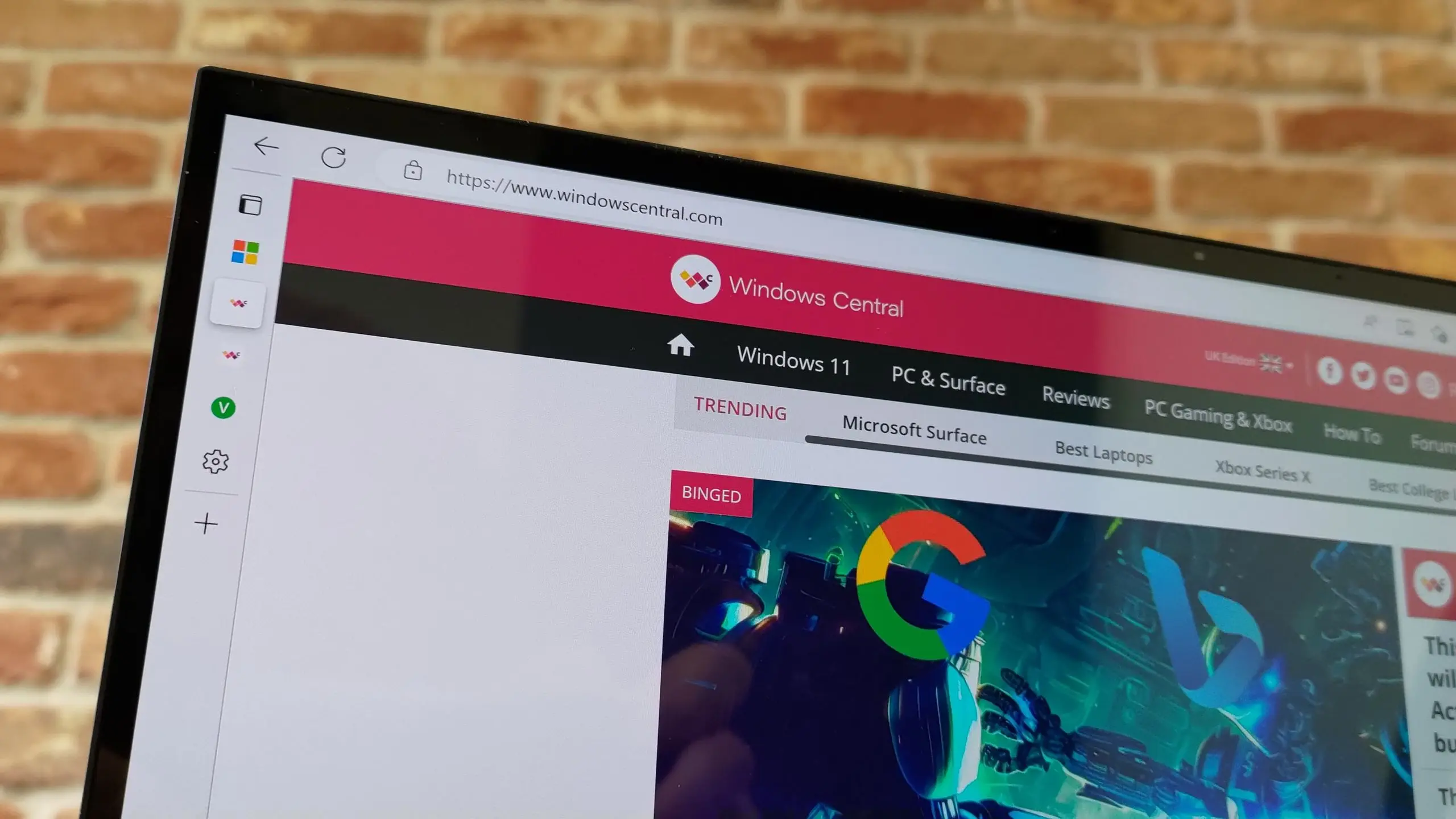
Dark mode has become a staple of modern computing, cherished for reducing eye strain in low-light environments and saving battery on OLED screens. While most operating systems and many apps now offer native dark themes, websites often remain stubbornly bright. Microsoft Edge, however, provides a built-in solution that doesn't require installing any extensions: a hidden experimental flag that forces all sites into dark mode.
What is the Forced Dark Mode Flag?
Edge's Force Dark Mode for Web Contents flag is part of the Chromium engine that underlies the browser. It applies an automatic dark theme to every webpage, regardless of the site's own design. The feature analyzes the page's colors and inverts light areas while preserving readability. It's not perfect — some images or custom fonts may appear distorted — but for most everyday browsing, it works seamlessly.
How to Enable It
To activate the feature, follow these steps:
- Open Microsoft Edge and type
edge://flagsinto the address bar. Press Enter. - In the search box at the top of the experiments page, type dark mode.
- You'll see an entry called Force Dark Mode for Web Contents. Click the dropdown next to it and select Enabled. You can choose between several modes: Enabled with selective inversion of non-image elements is usually the best balance between readability and consistency.
- Reload the browser when prompted. All sites will now appear in dark mode.
Fine-Tuning the Experience
The flag offers a few sub‑options to control how aggressively dark mode is applied:
- Enabled – Basic inversion that works on most elements.
- Enabled with selective inversion of non-image elements – Skips images and videos to avoid negative effects.
- Enabled with selective inversion of everything – Applies inversion to images as well, which can produce interesting but often unusable results.
If a site appears too dark or elements become unreadable, you can temporarily disable the flag for that session by visiting the flags page again and setting it to Disabled. Alternatively, Edge's built-in Appearance settings allow you to switch between system, light, and dark themes for the browser interface, which works in conjunction with the flag.
Why Use Edge's Built-In Dark Mode Instead of Extensions?
Third‑party dark mode extensions often require permissions that can track your browsing habits, consume memory, and occasionally break websites with script conflicts. Edge's flag operates at the browser level, so it's more efficient and respects your privacy. Additionally, because it's part of the Chromium codebase, it receives updates alongside Edge itself, ensuring compatibility with the latest web standards.
Background and History of Dark Mode on the Web
Dark mode has roots in early command‑line interfaces, where green or amber text appeared on black screens. As graphical interfaces evolved, white backgrounds became the norm. The modern resurgence began around 2018, when macOS Mojave and Android 10 introduced system‑wide dark themes. Websites began adding CSS media queries for prefers-color-scheme: dark, but many still don't support it. Flags like Edge's fill that gap, offering an immediate solution without waiting for site developers.
Research suggests that dark mode can reduce eye fatigue and improve sleep quality when used at night by lowering blue light exposure. However, it can also reduce readability in bright environments, so toggling it based on ambient light is recommended. Edge's flag respects the system theme by default, so on Windows you can set dark mode on a schedule to automatically turn on at sunset.
Potential Caveats
While extremely useful, forced dark mode isn't flawless. Some sites rely on transparent backgrounds or subtle gradients that may invert unexpectedly. Text on dark backgrounds can sometimes lose contrast if the original colors were light. The flag offers an Automatic mode that tries to detect when a site already has a dark theme and skip it, but this isn't foolproof. For those who need pixel‑perfect rendering, manually enabling dark mode per site via Edge's Site permissions is still not available, so the flag remains an all‑or‑nothing switch.
Other Chromium Browsers and the Same Flag
Since Edge is built on Chromium, the same flag exists in Google Chrome and other Chromium‑based browsers. However, Edge's implementation is often more polished because Microsoft invests additional resources into the Accessibility and Reading features. Chrome users can also enable the flag, but the experience may vary slightly due to differences in how each browser handles color profiles.
Conclusion Is Not Needed
The ability to force dark mode without an extension is one of Edge's most under‑rated features. It demonstrates how a simple flag can transform browsing, making it easier on the eyes and more enjoyable at night. By following the steps above, anyone can unlock this feature and start seeing the web in a new, darker light. No downloads, no permissions, no clutter — just a cleaner browsing experience that respects your preferences.
Source: Windows Central News